April VoteSource Newsletter
Apr 2026 · 2587 words · 13 minute read
Welcome to the April edition of the VoteSource Newsletter.
We are pleased to welcome you to this Local Election Special Edition of the VoteSource newsletter!
Missed our last edition? Catch up by clicking here.
Or click here to browse all previous editions.

Introducing our Local Election Special Edition!
The VoteSource team would like to welcome you to this Local Election Special Edition of the VoteSource newsletter!
With Poll Day for 2026’s Local Elections fast approaching, we have designed this newsletter to provide you with all the important advice you will need to get your campaigns VoteSource ready for Poll Day. We will discuss candidates, control rooms, and a multitude of frequently asked questions in the hope of providing our users with elections this year all the assistance they need to successfully use VoteSource throughout their campaigns.
We hope you find this newsletter useful and informative, and please remember, the Member Services team are always happy to help with any further GTV related VoteSource queries you may have.

Adding Candidates – An Underused Feature of the VoteSource system
Following the tradition of the VoteSource Newsletter highlighting some of the best and most forgotten tools on the VoteSource system, we turn our attention in this newsletter first to an important election administrative feature:
Adding Candidates.
By adding candidates on to the VoteSource system you are able to improve the past and future records of your election campaigns, as well as:
-
Make use of the ‘replacement text’ function within survey creation; if a candidate’s name is added to the election, the replacement text field on a survey can be used to pull this name whenever the survey is used, meaning you would not need to create a new survey every time a candidate name changes.
-
Marking the opposition candidate you enter as automatically ‘No Contact’ on their contact restrictions, which removes them from future campaigning sessions/activities.
Adding candidates onto VoteSource, therefore, should be considered an essential part of all election campaigns on VoteSource.
And this process could not be easier!
You can add your candidates on to the VoteSource System either through the dedicated ‘Candidates’ section available within the ‘Campaigns’ Tab (as shown on the left, below), or from within your GTV Control Room from the ‘Setup’ tile (as shown on the right, below):
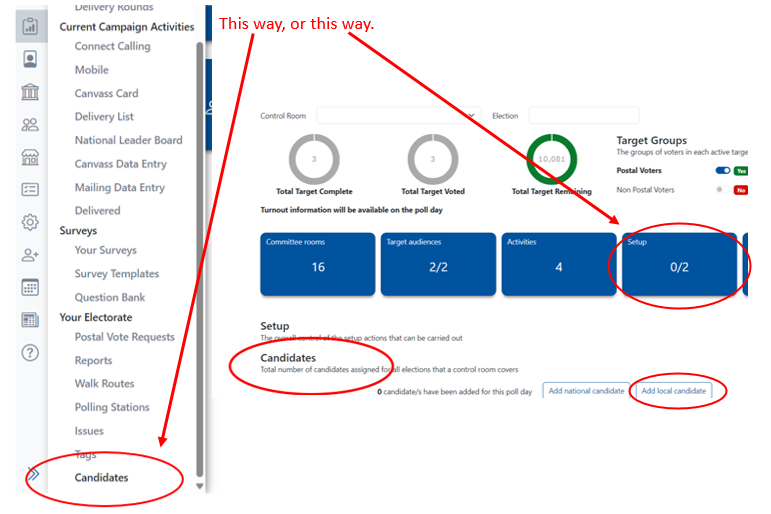
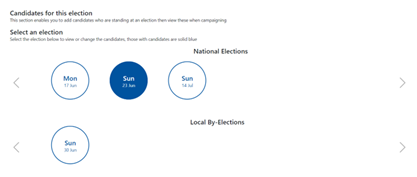
Once you select the dedicated Candidates section, or ‘Add local candidate’ from within your GTV control room, you will be taken to the below page where you simply need to select the election you are adding your candidate for:
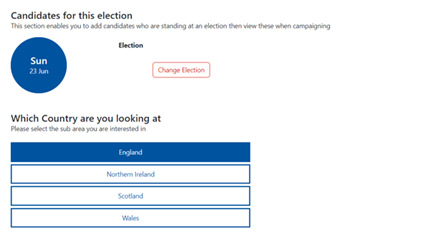
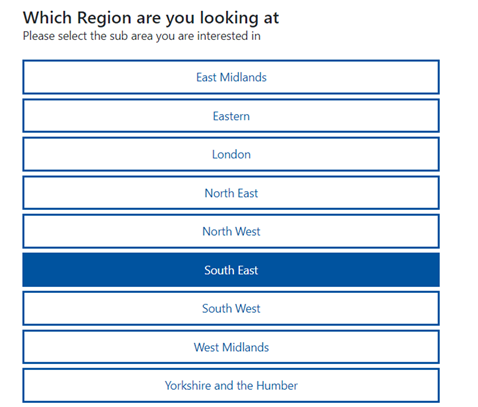
And then specify the electoral geography you are attaching the candidate to through the following pages:
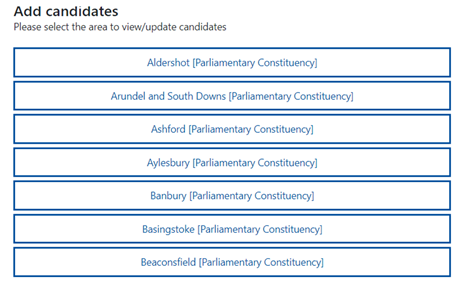
Finally, you will then need to select whether the candidate you are adding is a Conservative or opposition candidate:
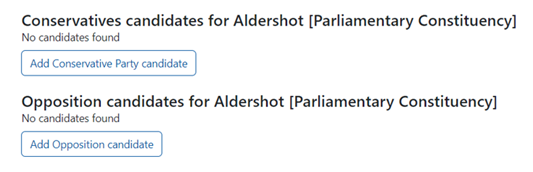
Once you select this, you will be able to search for the name of the individual you are adding as a candidate, and then assign the candidate mark to this constituent:
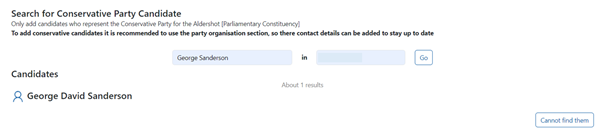
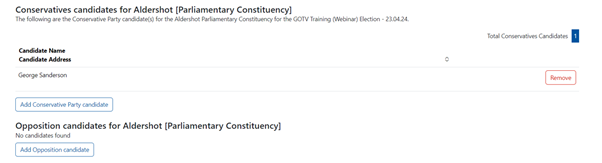
You have now added a candidate, and the candidate screen will look as below:
If you have done this through your GTV control room, the ‘Setup’ tile will also update as below:
You have now successfully added a candidate for the election you are contesting, and we would recommend you complete this process for every candidate you are aware of for this election.
For further assistance with adding your local candidates on to the VoteSource system, please see the below step-by-step guides from our extensive VoteSource help centre:
Campaigns - Additional – Candidates – https://votesource.uk/support/helpcenter/viewarticle/397
GTV – Setup – Adding Candidates and Polling Stations. – https://votesource.uk/support/helpcenter/viewarticle/396
And don’t forget to tag the people who have signed nomination papers for your conservative candidates as well.
This important administrative task will make finding proposers and seconders much easier for your future elections, and by following the below guide you will be able to complete this valuable task:
Constituent - Adding a Tag – https://votesource.uk/support/helpcenter/viewarticle/227
You should use the tag group ‘Campaigning’, and tick the relevant box within the tag group, for this process.
And finally, if you are struggling with this process or any process on VoteSource at all, and need a helping hand, please just let our Member Services team know via email at memberservices@conservatives.com or give us a call on 020 7984 8036.
Important GTV Instructions for the Local Elections; Ensuring you have activated and begun your VoteSource Election campaign
With this year’s Local Elections fast approaching, it is important to make sure your campaigns are up and running for Poll Day. This means it is time to ensure that your VoteSource GTV activities are activated and ready to use.
What activities you run on the day are up to you and what your campaign needs, however, the VoteSource team would strongly encourage that any association that has local elections this May makes sure it has created and finished the setup of a GTV Control Room on VoteSource by 01/05/2026; Control Rooms should – if it all possible – not be created on Poll Day itself.
GTV Control Rooms are the home of all your election campaigning on VoteSource, and they are designed to streamline your campaigning on the day. They are also the only area of VoteSource that you can record telling data, and so they are an essential campaigning tool for your Poll Day operations.
Only the Chairman or Agent of the association will be able to set up your Control Room, and only one is required per election, per constituency.
In order to set up your Control Room on VoteSource, you would need to navigate to the ‘Get The Vote’ section of the ‘Campaigns’ Tab. From here, you would be able to select ‘Control Rooms’ and then create a new control room; the process that follows here is very similar to creating a Target Audience.
For a step-by-step walk through of this process, please see the following user guide, which includes pictures and instructions of the whole process:
Fundamentals - Activating your GTV Campaign: https://votesource.uk/support/helpcenter/viewarticle/420
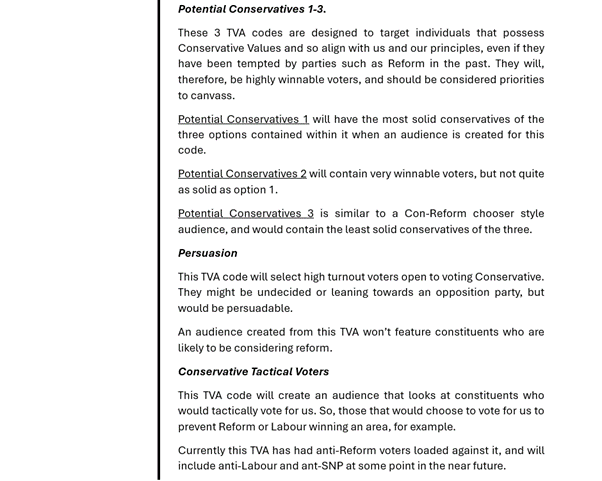
As for advice on which Target Audience to use within your Control Room this year, the VoteSource team would strongly recommend making use of our new TVA codes.
These new TVA codes have been specifically designed to allow you to reach exactly the group of voters you need every time, allowing you to fine tune your campaigns and dedicate your resources in the most effective way. They are, therefore, ideal for building audiences for your local election campaigns.
For details on the new TVA options available to you, please see the below excerpt from our January newsletter:
And for creating a target audience for your GTV control room using these codes, you would need to create an ‘Advanced Target Audience’, selecting ‘Target Voter’ criteria (from within the ‘Only Keep Constituents whose’ box); step-by-step guides on this process can be found here from within our extensive VoteSource help centre:
Target Audience – How to create an Advanced Target by Electoral Area - https://votesource.uk/support/helpcenter/viewarticle/255
Target Audiences – Target Voters – https://votesource.uk/support/helpcenter/viewarticle/382
It is also important to keep your control room reflective of the stage of the campaign you are in.
For some advice on progressing your control room through the different stages of your local election campaigns, please see the below guides:
Fundamentals - The Three stages of the GTV cycle - Stage 1 – GOTPV – https://votesource.uk/support/helpcenter/viewarticle/362
Fundamentals - The Three stages of the GTV cycle - Stage 2 – GOTV – https://votesource.uk/support/helpcenter/viewarticle/363
Fundamentals - The Three stages of the GTV cycle - Stage 3 - Polling Day – https://votesource.uk/support/helpcenter/viewarticle/364
And finally! For some helpful advice on VoteSource Poll Day operations themselves, please see our below Advice and FAQ’s Articles.

Important GTV Advice for the Local Elections; Getting your GTV campaigns ready for Poll Day!
In order to get your campaigns Poll Day ready on VoteSource, the VoteSource team have prepared the following advice to assist all our users with their local election campaigns as best we can.
So, firstly, to guarantee successful Poll Day operations, we would advise the following is actioned pre-Poll Day:
- Run new target audiences in the control room.
Remember, a target audience run via the control room or ‘Campaigning’ is a snapshot of the data available at the time it is run. It is, therefore, worthwhile running fresh target audiences in your control rooms to ensure you are using your most recent campaigning data. We advise running these on the eve of poll.
Don’t worry, constituents you have already marked as voted via GTV will not reappear in the new target audiences.
- Make sure your volunteers and activists have access to their committee rooms or GTV knock up/telling tasks.

Remember, whilst you may automatically have access to your control room and committee rooms due to your access, most of your volunteers will not.
They will require the committee room pins, which you can find in the Control Room under the Committee room tile.
We strongly encourage you to make sure your teams have entered these pins, and you have approved their access via the committee room, before poll day.
The Member Services Team CANNOT give out or approve these requests without authorisation from the person in charge of the control room – so please plan ahead accordingly!
- If you are using a custom connect survey/script in your control room, please ensure it is set up correctly!

We encourage people to make their own custom data entry scripts, but they do need to be set up correctly or they won’t work properly on poll day. If you have a question stating that the individual has voted, that answer must have the below two items of logic saved against it to operate correctly:
“Add GTV has voted”
“End GTV knock up”
If your Voted answer does not have these two actions recorded against it then your survey will not mark people as voted and complete; these constituents would then continue to be available to contact from your control room.
If you want to mark someone as completed because they are not able or cannot vote, you will need to assign that answer in your survey this one piece of logic:
“End GTV knock up”
- Check your teams Mobiles/Tablets are prepared!

Your activists will need to have entered their committee room pins before Poll Day, either via the VoteSource website under the GTV section (and then the Committee room tile), or via the VoteSource Canvasser app by selecting the ‘New’ option and entering the pin.
The person in charge of the Control Room will still need to approve access requests via the relevant committee room before said activists will see the GTV activities on their App.
As a reminder, on the mobile app the data that is downloaded to your device is a copy of the information made available in the control room. The app will upload data to the VoteSource system so long as the user is connected to the internet.
Your volunteers will need to refresh their polling districts periodically throughout Poll Day to ensure that electors that are marked as voted by other activists are removed from their copies of the data. This can be done by going into the Canvasser task and clicking the ‘blue refresh icon’ found next to the relevant polling district.
Don’t forget to charge your device before poll day!
Then, with the above already actioned, you should be prepared to conduct your Poll Day activities through VoteSource.
We would also encourage the following in order to make sure the day runs smoothly:
- Change your data entry scripts in the control room.
Most users will be using data entry scripts for GOTPV or GOTV before Poll Day. These are designed for pre-Poll Day data recording and will need to be changed to Polling Day data entry; the relevant Poll Day scripts have ‘Polling Day’ in their title, and these have been set up ready for you. This will ensure you are asking the right questions and recording the right data.
- Do not run target audiences outside of the control room on poll day.
On polling day, you should only be running operations through your control rooms and committee rooms. Activities being run in other sections of VoteSource may cause problems for the GTV setup of the day.
Please limit all polling day activities to just the control rooms and committee rooms.
Your GTV operations on VoteSource should now be Poll Day ready!

Poll Day FAQ’s – Your VoteSource Poll Day questions answered!
Finally, below you will find some frequently asked questions (and their answers/solutions), so that you have the answers to some common queries for Poll Day.
The VoteSource team and Member Services team have prepared these using our experience of the most frequently asked questions on Poll Day over our many years of supporting our users on VoteSource during the day. We hope these will help you run your GTV activities as smoothly as possible.
1. ‘I want to help with (x)’
The individual offering their assistance will need to speak with the member of your local team who is running the VoteSource GTV Control Room for the day. They will either be able to provide access or pins to facilitate this access request.
If you are not aware of who is responsible for running your Control Room on the day, please contact the Member Services team and we will advise further.
2. ‘(x) activity is not available’
This will either be because you do not have access to the activity, or the activity has not been enabled yet. In both cases, your first point of contact would be the member of your local team responsible for your Control Room. They will be able to check the activity is running correctly and give you access to it.
If they are unsure, or you have any further access related issues, please contact the Member Services team.
3. ‘How do I enter Knock Up data?’
Please see the below step-by-step guide on this process:
GTV - Committee Room - Activities - Data Entry – https://votesource.uk/support/helpcenter/viewarticle/310
4. ‘How do I enter telling data?’
Please see the below step-by-step guide on this process:
GTV - Committee Room - Entering Telling – https://votesource.uk/support/helpcenter/viewarticle/312
5. ‘We need new constituents to canvass’
Please speak to the member of your local team in charge of your Control Room, and request that they make a new target audience so as to refresh the constituents available for you to canvass.
We, at the Member Services team, cannot make these target audiences for you.
If you have any further questions about your VoteSource GTV operations, or if you need any assistance throughout Poll Day itself, please just reach out to the Member Services team via email at memberservices@conservatives.com, or give us a call on 020 7984 8036; we are – always – more than happy to help!
Finally! Good luck from the Member Services team!
Stats of the Month
Did you know that during the last General Election, of all Conservative held - and gained - constituencies, 76% had recorded above average VoteSource usage in the year leading up to the election campaign compared with the rest of the UK?
In comparison, of those constituencies where the campaign was not successful during the last General Election, only 56% had an above average usage score of VoteSource in the same period.
The correlation is clear; making the most of VoteSource in your constituency will directly enhance your election campaigns. So why not run that new target audience, create that survey, and start your GTV campaigns today!